Introduction
What Metaspace is
Metaspace is a 3D sketchbook. Instead of drawing on a flat page, you draw on planes inside space and move the camera around your scene.
- Draw in three dimensions with Apple Pencil or touch.
- Organize ideas with layers.
- Save camera positions as viewpoints.
- Share and reopen projects as
.mtspzfiles. - Review drawings in augmented reality on supported devices.
Five minutes
Quick start
- Open Metaspace. The app starts in the Library.
- Create a new Space and enter the editor.
- Select Draw, choose a tool, and place your first stroke.
- Pinch to move toward or away from the active drawing plane.
- Use one finger to move laterally and two fingers to orbit.
- Add another layer or save a viewpoint when the sketch becomes more complex.
Before you begin
Requirements and permissions
Device and OS
Metaspace supports iPhone and iPad running iOS or iPadOS 17.5 or later. Apple Pencil is recommended on compatible iPad models.
Camera access
Camera permission is requested only when you enter augmented reality. Core drawing and project management work without it.
Projects
The Library
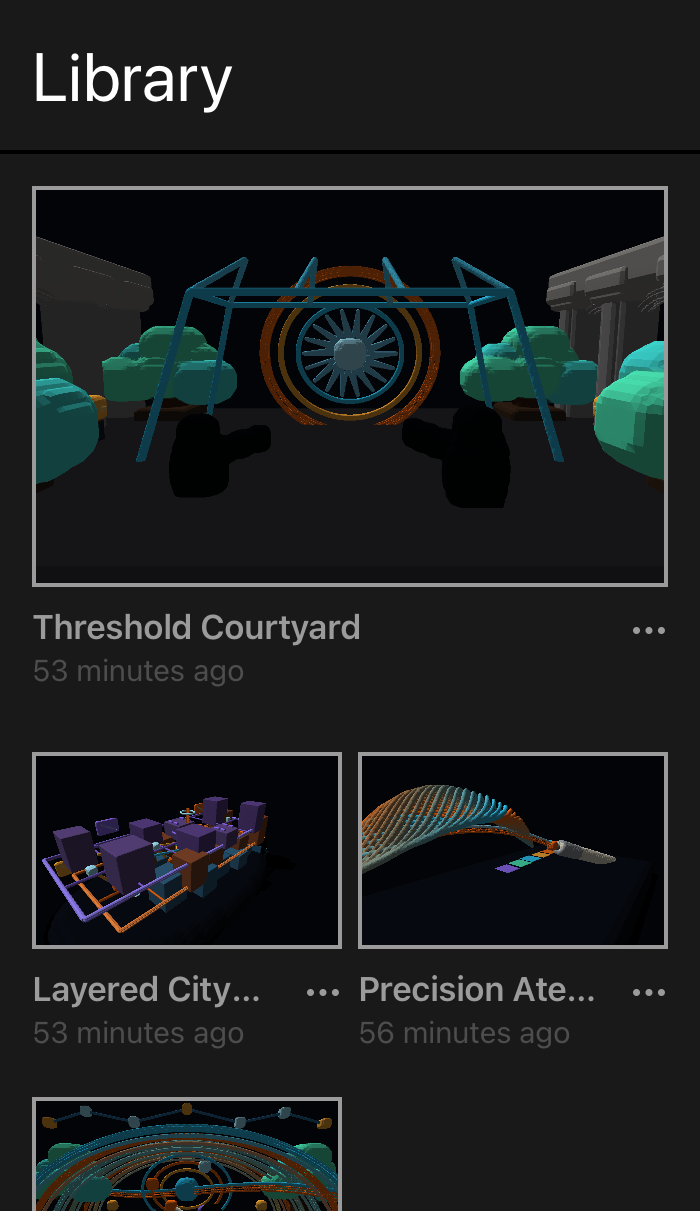
The Library contains every Space stored on your device. Select a thumbnail to open it, use the add control to create a project, or import a shared .mtspz package.
Create a Space
- Select the add control.
- Give the Space a clear name.
- Choose the initial background and open the editor.
Delete a Space
Use the project management control and confirm deletion. Deleted local projects cannot be recovered unless a shared copy exists elsewhere.
Workspace
Editor overview
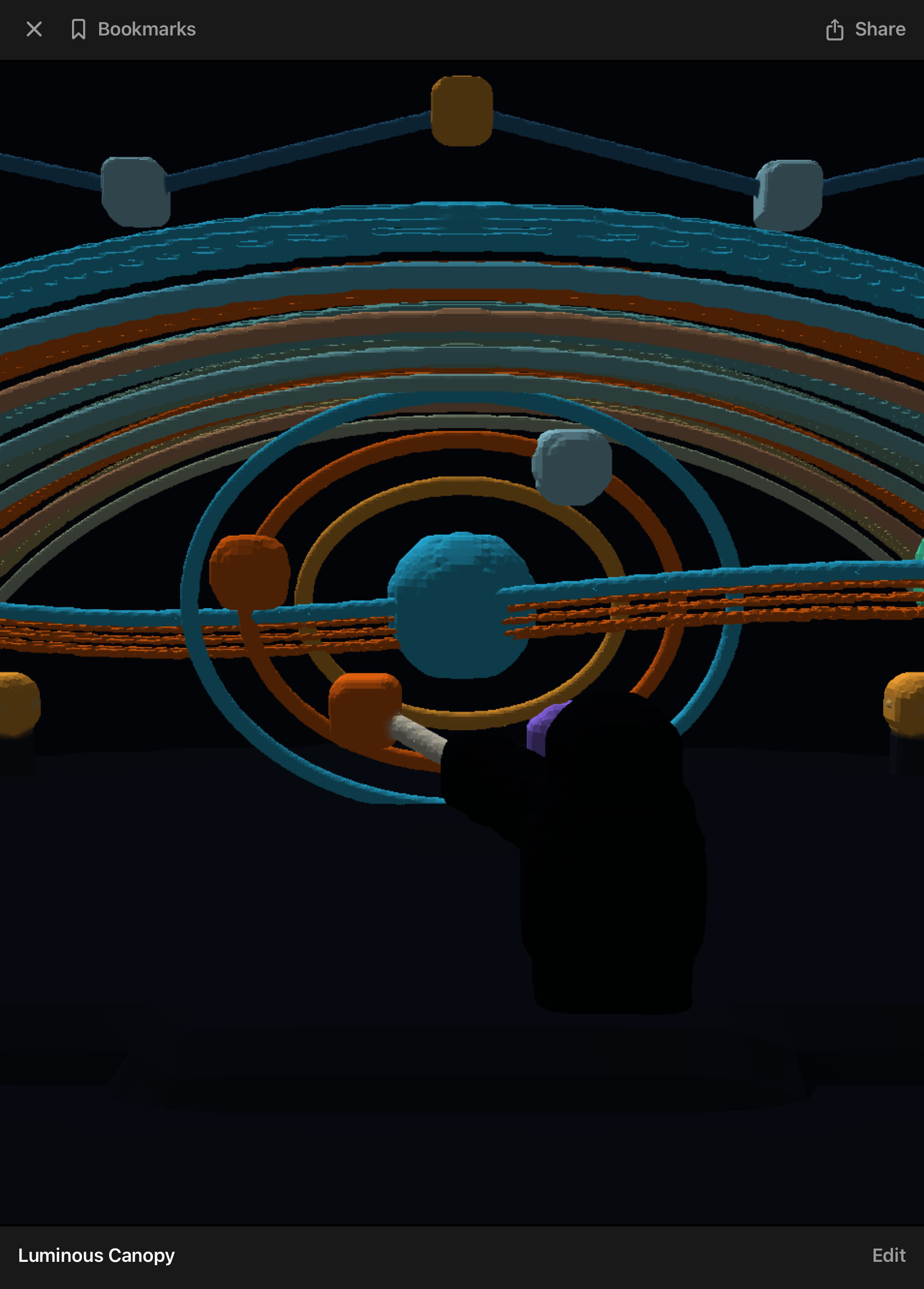
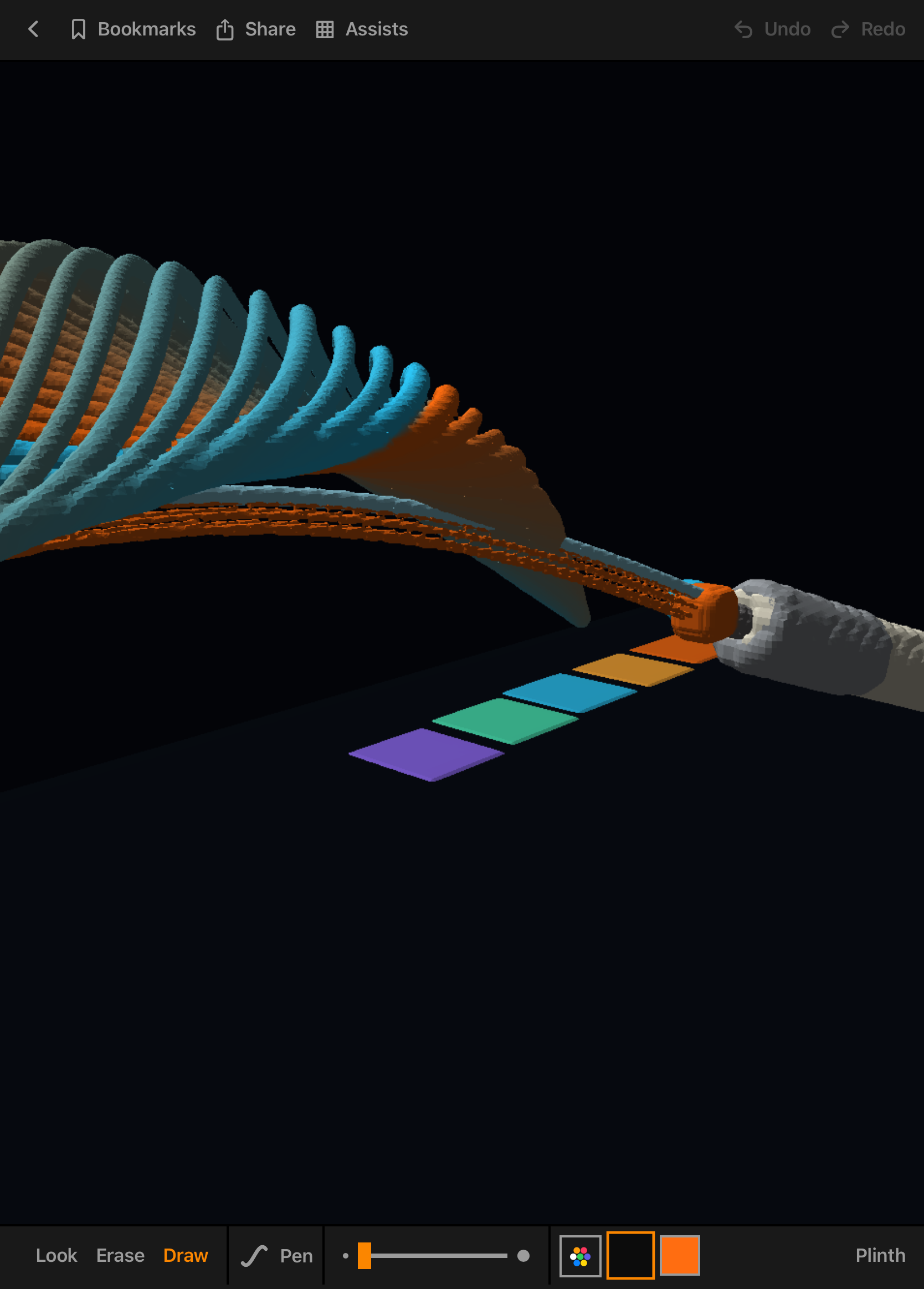
The editor is organized around three modes: Look for navigation, Draw for creating marks, and Erase for removing them. Project, layer, color, tool, and history controls remain close to the canvas.
Save behavior
Metaspace saves project changes locally as you work. Allow a moment for large scenes to finish writing before closing the app.
Drawing plane
The active plane sits between the front and back scene layers, making stroke depth visible while you draw.
Make marks
Drawing and erasing
Enter Draw mode, choose a tool, set its color and width, then draw on the active plane. Change your camera position before placing strokes at another depth.
Tools
Choose from pen, pencil, marker, monoline, fountain pen, brush, crayon, shape, and ruler-assisted drawing.
Undo and redo
History controls step backward or forward through recent drawing actions within the current editing session.
Color
Select a preset or create a custom color, then apply it to new marks.
Width
Adjust the active tool width before drawing. Width is preserved with each completed stroke.
Stay organized
Layers and background
Layers separate different parts of a drawing. Add, rename, hide, show, or delete them from the project panel. The active layer receives every new stroke.
- Use separate layers for structure, annotations, alternatives, and presentation marks.
- Hide layers to inspect overlapping geometry.
- Set the background independently from drawing colors.
- Confirm the active layer before beginning a detailed pass.
Bookmark the camera
Viewpoints
A viewpoint stores the current camera position and orientation. Use viewpoints to move quickly through a complex scene or prepare a sequence for review.
- Navigate to the view you want to preserve.
- Open the Viewpoints panel and add a viewpoint.
- Select its thumbnail at any time to return.
- Reorder or remove saved viewpoints as the project changes.
Move between devices
Share and import
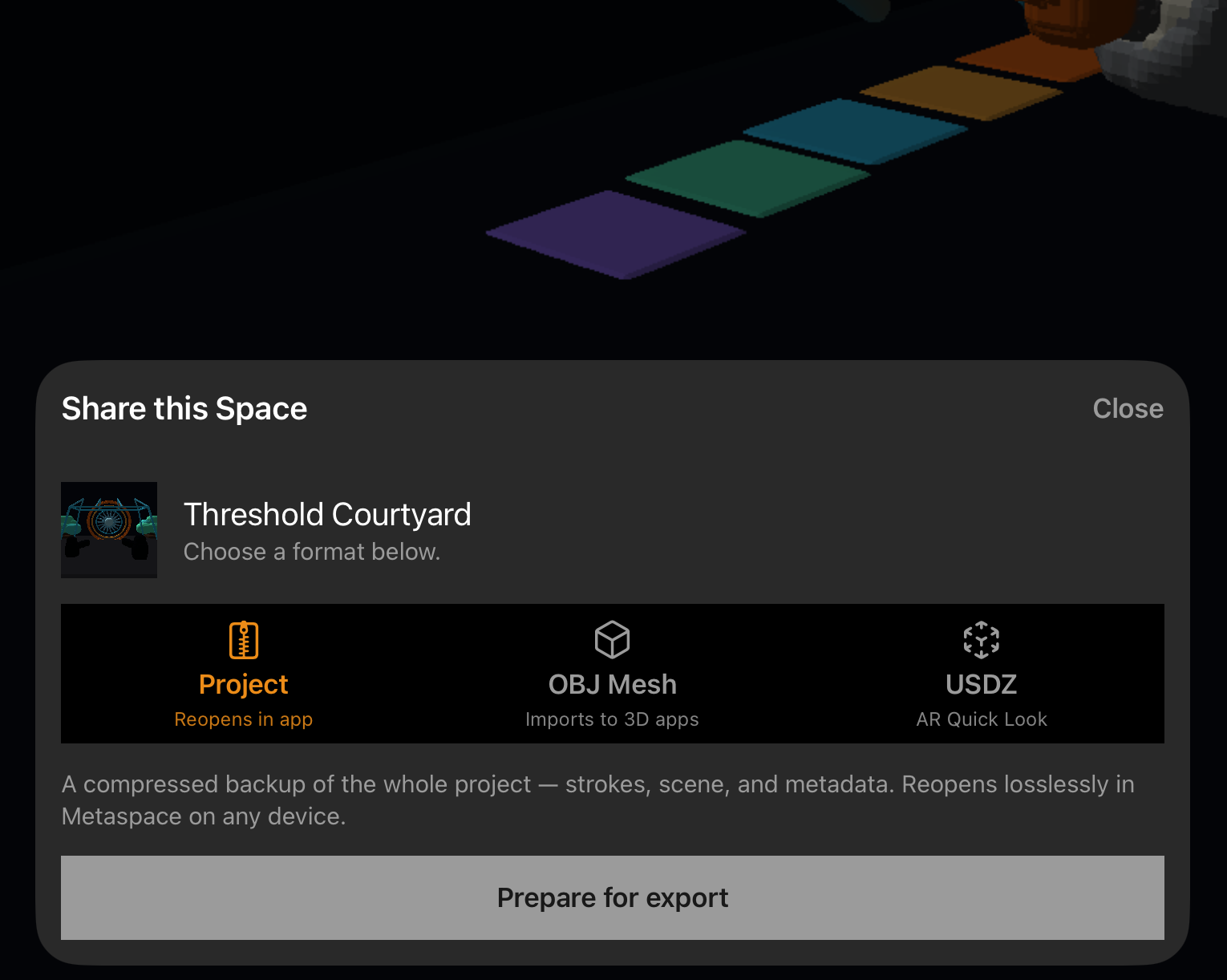
Metaspace exports a complete Space as a .mtspz package containing the scene, metadata, and preview. A recipient can import the package and continue editing.
Export
- Open the project controls.
- Select Share.
- Choose a destination in the system share sheet.
- Keep the app open until packaging completes.
Import
- Open the
.mtspzfile with Metaspace. - Wait for the package to copy into the Library.
- Open the new project after its preview appears.
Full access
Unlock and purchase
The unlocked experience removes project limitations and enables the complete creation and sharing workflow. Purchase and restoration are handled through the App Store.
- Use Restore Purchases when moving to a device signed in to the same Apple Account.
- Confirm that the App Store is reachable if restoration does not complete.
- Purchases are associated with the Apple Account, not a Metaspace account.
Solve common issues
Troubleshooting
I can edit only one Space
Check unlock status and restore the purchase if you previously bought full access.
Sharing does not proceed
Keep Metaspace active while the package is created and confirm that the destination has enough free space.
An import is missing
Return to the Library and allow the package to finish copying. Reopen the app if its preview does not refresh.
Learn content does not load
Check the network connection. Core project editing remains available offline.
Reference image is absent
Reopen the reference picker and confirm that Photos permission is available.
Undo is unavailable
History can reset after closing a project. Use saved project state rather than undo for long-term versioning.
Quick answers
Frequently asked questions
Is Metaspace a 2D drawing app with camera effects?
No. Marks are placed on drawing planes within a three-dimensional scene.
Can shared projects remain editable?
Yes. Importing a .mtspz package restores its project structure for continued work.
Are projects stored online?
Projects are stored locally unless you explicitly share or move them using system services.
Can I use Metaspace without Apple Pencil?
Yes, although Apple Pencil provides the most precise drawing experience on iPad.
Where can I get support?
Email contact@digitalarchitecture.xyz with the device model, OS version, Metaspace version, and a concise description of the issue.