What’s new · Metaspace 17.6.0
Metaspace 17.6 introduces a new interface, built in Metal
Your spatial sketchbook has a new interface from the Library to the canvas, with five display themes, more expressive tools, and new ways to find your way in 3D.
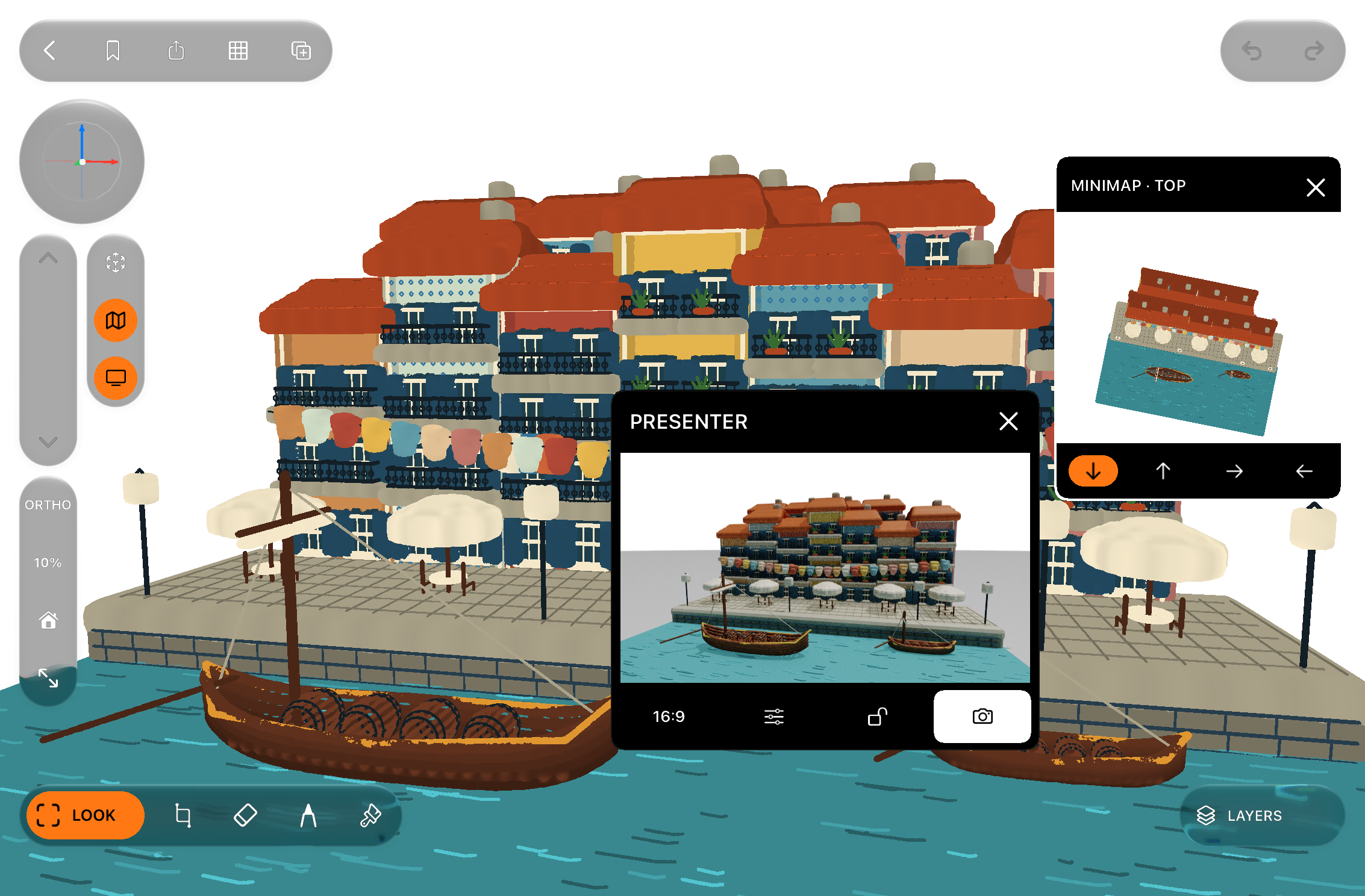
Metaspace 17.6.0 is available today for iPhone and iPad. This release rebuilds the app’s interface in Metal, bringing the Library, drawing controls, panels, and transitions into the same graphics environment as your Spatial Ink canvas.
That change reaches throughout the sketchbook: how a project opens, how controls respond, how you arrange your workspace, and how the app looks. Alongside it come new drawing materials, precision guides, spatial kits, improved imports, and two ways to learn by exploring and making.
The Metal interface
One continuous workspace
Metal is Apple’s graphics technology, already used to draw your Spatial Ink scenes. In 17.6, it also draws Metaspace’s own interface. Controls and artwork now share one coordinated surface, with glass that responds to the scene beneath it and transitions that connect the Library, panels, and canvas.
Compact tool islands keep actions close to the drawing. Press labels help identify controls, while a reorganised Library gives project previews more room and separates your Spaces from places to explore. Project-opening transitions carry the Library preview into your artwork. Project settings, menus, the colour picker, and the on-screen keyboard share the new visual language.
Scrolling gains an elastic edge response. Panels and menus can change direction mid-transition, and sliders reveal their current value while you adjust them. Move your finger farther from a slider’s track for finer control. Text and panels adapt to available space and larger text settings, with reduced animation when Reduce Motion is enabled.
Five display themes
Make the sketchbook feel like yours
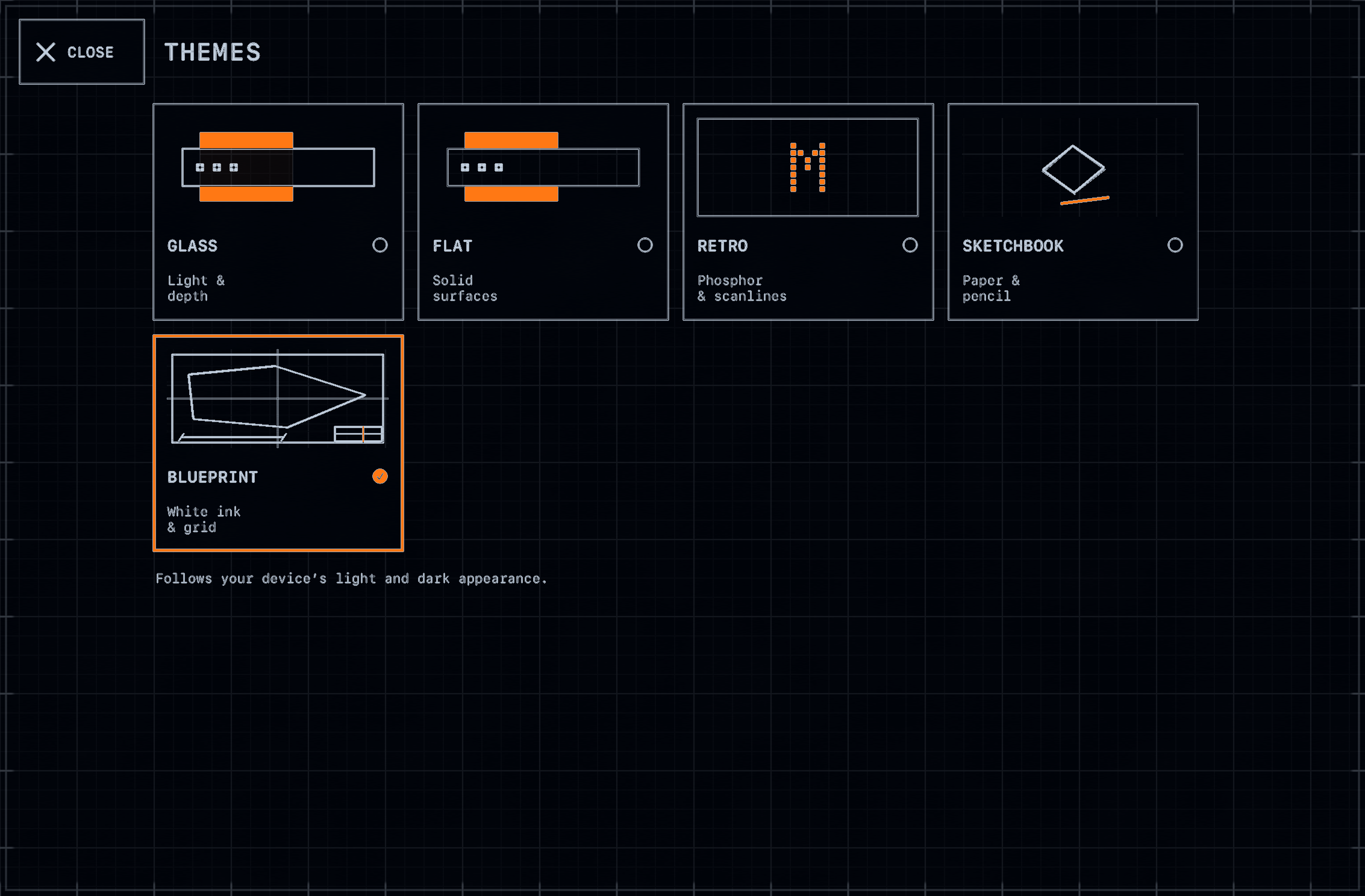
Choose a presentation that suits the way you think and draw. All five themes follow your device’s light or dark appearance.
- Glass brings translucent controls, light, and depth to the workspace.
- Flat uses solid surfaces for a more restrained view.
- Retro adds phosphor glow and CRT scanlines.
- Sketchbook brings a paper-and-pencil treatment to the screen.
- Blueprint pairs a drafting grid with technical lettering and ink-like lines.
Themes change the app’s presentation; they do not rewrite your project or alter its exports. Ray-traced artwork retains its native image and colours while the surrounding controls follow your chosen theme.
Drawing tools and colour
More character in every mark
Eighteen new Pro drawing tools join the original seven. Draw fine technical wires and flowing ribbons, add crayon or charcoal texture, build with beads, chains, and masonry, or bring a scene to life with foliage, clouds, bubbles, flame, and confetti. Each tool has its own stroke illustration in the picker, making its character easier to recognise.
Twenty drawing-size steps give you a consistent range to work across. A shared colour wheel and saved colours make it easier to return to a palette, and the Paint controls show the colour you are about to apply. The Eraser now works independently of the drawing grid, so removing a mark does not require changing your drawing setup.
Precision and spatial kits
Give a loose idea some structure
New Pro drawing guides include a ruler, ellipse, curve, and protractor, with adjustable placement, drawing planes, and measurement units. Quick Shapes create lines, rectangles, and ellipses in a drag. Mirror draws both sides together, while drawing-plane lock lets you keep working on the same surface as you change viewpoint.
Spatial Kits add reusable architectural, landscape, diagramming, and volumetric elements. Place a window, a tree, an arrow, or a solid form to establish the details of a scene, then build around it with Spatial Ink.
Minimap and Presenter
Keep your place. Frame your next view.
The Minimap now shows your camera position and direction, field-of-view boundaries, and drawing plane across its viewpoints. You can see how the view you are composing relates to the wider scene.
Presenter shows the complete image in landscape 16:9 or portrait 9:16, with its title and controls outside the picture. Both floating panels can be moved and resized, gently settle near an edge, and remember your arrangement between launches while adapting to the available space.
Motion Depth and AR
A different way to look into a drawing
Motion Depth introduces a window-like view into your scene, using device movement or supported face tracking to shift perspective around a focal plane. Set Centre and Recentre make it easier to establish a comfortable starting position. A dedicated Sensor Control island keeps the active mode visible, with live diagnostics to explain what the sensors are doing.
Nearby geometry can dissolve as you move through it, helping keep the view readable. AR also gains corrected camera-feed orientation and shadows that fall onto detected real-world surfaces.
Imports
Bring in the original detail
Model imports, photo-to-3D, and environment-scan review now start with voxelisation switched off. Models and scans retain their original geometry and available material detail; a photo becomes a continuous textured relief with depth and clipping controls. Switch voxelisation on when you want to turn an import into Spatial Ink voxels.
Preserved objects can be selected, moved, transformed, duplicated, and deleted as a whole. Their geometry and materials survive saving and reopening, with material support in OBJ and USDZ export. Painting and voxel erasing leave these preserved surfaces intact.
Import previews start in Sketch, with a single control to cycle through Fast 3D and Realistic. Changing that preview look keeps the object and viewpoint in place without changing the project’s rendering settings.
Environment and rendering
Shape the setting around the sketch
A redesigned environment panel brings together background colour, lighting presets, time of day, sun direction, and sun-colour strength. The live New Space preview returns, and configurable ground rendering includes an automatic height setting.
The Render screen now fills the display. Progressive ray tracing uses native-resolution images in the editor and Presenter, with fixes to rendering on Apple M1. Behind the scenes, UI scrolling reuses completed scene images, undo and redo controls refresh when their state changes, and opaque drawings avoid unnecessary rendering work.
Discover and learn
Start with a place. Learn by making one.
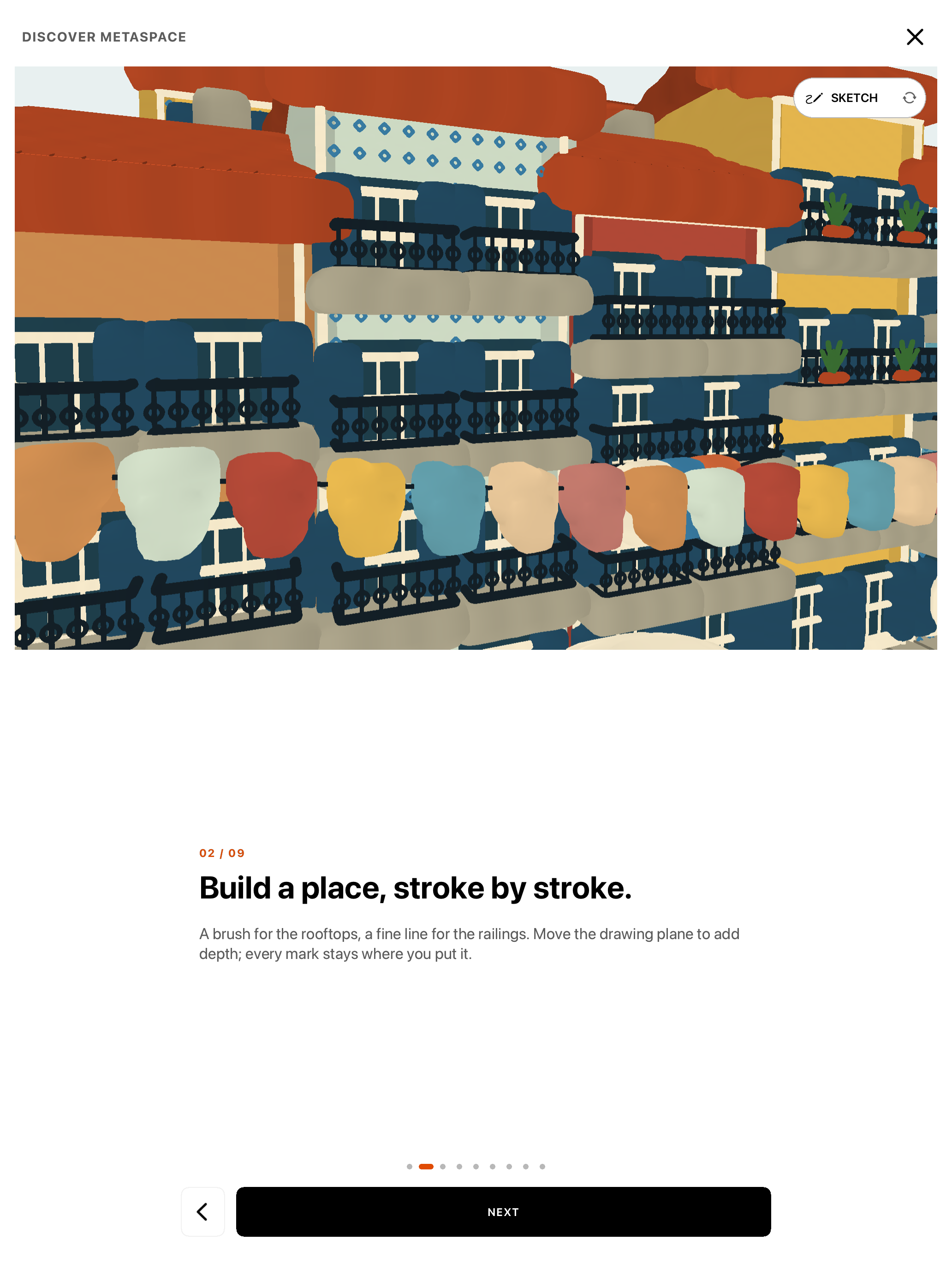
Discover Metaspace is a nine-part introduction built around a detailed, Porto-inspired waterfront drawing. Move between viewpoints, explore what Spatial Ink can do, and switch between Sketch, Fast 3D, and Realistic. The final step leads into the demo browser so you can choose a drawing to open and edit.
A separate interactive street-scene tutorial guides you through 21 short lessons in the actual creator and editor. Draw a façade, pavement, road, figure, and tree using the real tools. Collapse or skip a lesson, leave when you need to, and resume later. Your marks remain in the project, including when you restart the tutorial.
Metaspace Pro
A clearer view of what you unlock
The redesigned Pro screens explain each feature with illustrated examples, show local App Store prices, and make purchase restoration easier to find. Existing supporters have a new thank-you screen. The 18 additional tools, precision drawing features, and Spatial Kits are included in the existing Pro unlock. The original seven tools remain free, along with layers, rendering, Presenter, AR, and environment scanning.
Project compatibility
A sketchbook for Spatial Ink
Metaspace 17.6.0 opens Spatial Ink projects only. Projects in the retired Classic format remain stored unchanged, but this version cannot open or edit them. Selecting one shows a compatibility message and a route back to the Library.
Availability
Available now
Metaspace 17.6.0 is available now as a free update on the App Store for iPhone and iPad. The app is free to download, with optional in-app purchases for Metaspace Pro, and requires iOS or iPadOS 17.5 or later.
Download on the App Store