What’s new · Metaspace 17.7.0
Metaspace 17.7 adds drawing gestures and new Presenter controls
Straighten a line with a hold, fill an area with a scribble, and shape the view you share with new Environment and Presenter controls.
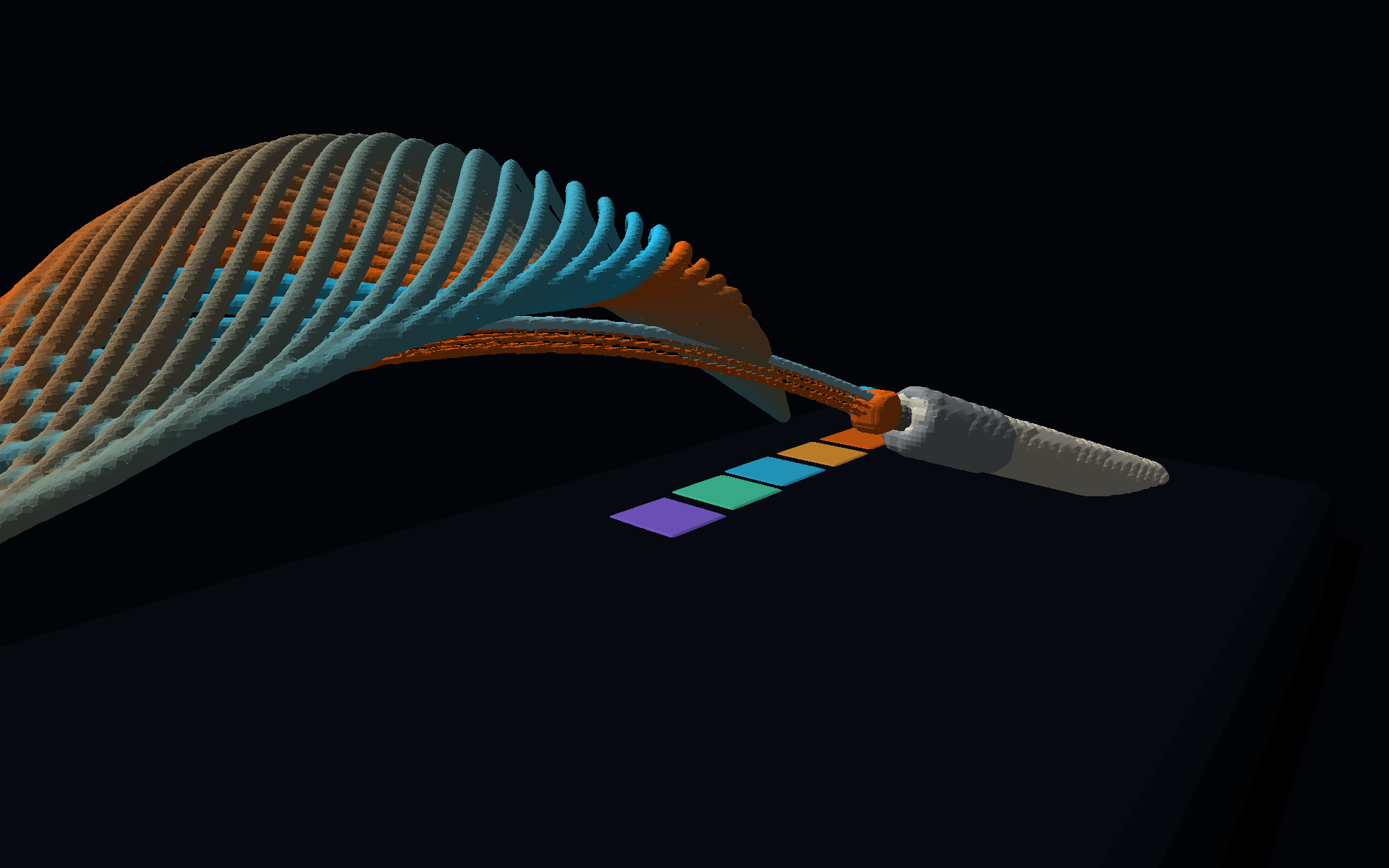
Today, Digital Architecture released Metaspace 17.7.0 for iPhone and iPad. The update brings more direct drawing gestures to Spatial Ink, redesigned Environment controls, and an expanded Presenter for composing a second view of your scene.
It also adds support for iPhone Duo, refines Apple Pencil and tilt controls, and introduces Simplified Chinese throughout the app.
Drawing gestures
A hold for a line. A scribble for a fill.
Draw a roughly straight stroke and hold at the end to straighten it. The line previews while you are still touching the canvas, so you can adjust its endpoint before lifting your finger or Apple Pencil to finish.
Scribble-to-fill gives enclosed areas a similarly direct gesture. Scribble inside a closed boundary and Metaspace previews the detected region before you lift to commit the fill. Both gestures keep feedback on the canvas, where you can see how the mark fits into your drawing.
Environment
See the setting as you shape it
The redesigned Environment workspace brings a live scene preview together with focused Scene and Rendering controls. Adjust the background, sun, ground, lighting, and rendering settings while watching their effect on your drawing, then keep your changes with Done or return to the previous setup with Cancel.
Three quick presets provide clear starting points: Sketch for unlit drawing colours, Fast 3D for real-time shading and shadows, and Realistic for ray tracing. Preset shortcuts are available when creating a Space and in Project settings. In portrait, the preview sits above the controls; in landscape, panels sit beside it.
Presenter
Compose the view you want to share
Presenter now has its own Environment workspace with Scene, Camera, and Rendering sections. Give the presentation a different appearance from your working view, adjust its field of view, choose a landscape 16:9 or portrait 9:16 frame, and hold a camera position while you continue exploring the drawing.
Presenter appearance and camera settings are saved with the project, so you can return to the view you composed. Changes to its field of view leave the drawing camera in place.
Improved external-display support lets you explicitly send Presenter to a connected screen. The external view shows the drawing without interface controls and uses your Presenter appearance and camera settings.
iPhone Duo and input
A workspace that follows your device
Metaspace 17.7 adds iPhone Duo support with adaptive layouts, improved Split View, and keyboard handling that keeps text entry and important controls accessible. The workspace responds to the available screen area as you move between device configurations.
Apple Pencil refinements respect your configured shortcuts and improve navigation when drawing is restricted to Pencil input. Tilt controls gain corrected movement directions and automatic recentring after the device is held still.
Simplified Chinese
More ways to feel at home
Simplified Chinese is now available throughout Metaspace, including drawing tools, settings, and tutorials. The app follows your system or per-app language setting, bringing the same spatial sketchbook to more people in the language they use every day.
Availability
Available now
Metaspace 17.7.0 is available now as a free update on the App Store for iPhone and iPad. The app is free to download, with optional in-app purchases for Metaspace Pro, and requires iOS or iPadOS 17.5 or later.
Download on the App Store